
Troubleshooting
Start with the smallest failing workflow. Preserve the last valid Layout/route and settings; do not reinstall dependencies or reset preferences to mask an unexplained problem.
Common workflow checks
| Symptom | Check in order |
|---|---|
| Generator runs, instrument does not change | Generate mode, source Enable, Dispatch, compatible mapping, matching instance, destination lifetime; use optional binding lifecycle logging |
| Instrument changes, no external data | Individual Enable/interval, explicit global Sending, transport readiness/policy, supported encoder; local simulation does not imply TX |
| Autopilot checkbox disabled | Manual movement off, valid selected route, engine/profile/gear readiness and mode. A field named Path may be the imported route's real internal name. |
| Weather fails while moving | Read provider error, valid request coordinates and bounded movement freshness. Normal movement is allowed; large relocation invalidates geographically stale results. |
| Unexpected extra RX widget | Inspect PGN, source address/NAME, instance and identity fields; different sources must stay distinguishable |
| Saved value changes at load | Inspect Template Saved Value/Setup Default policies and eligible generator samples; global Sending stays off |
| Custom theme absent | Correct external .qss directory/extension; reopen Setup to rediscover; check readability and stylesheet validity |
| Old log remains after Clear | Choose current channel and confirm Yes; explicit Clear/Refresh must work even with Pause selected |
Linux Serial Port Permissions
CANable SLCAN and other USB serial adapters commonly appear as /dev/ttyACM* or /dev/ttyUSB*. A permission error can mean insufficient device access or another application holding the port; Qt does not always distinguish these cases. Stop Sending before troubleshooting.
- Replace the example path with your actual selected device. Check ownership and permissions with
ls -l /dev/ttyACM0. Check your effective session groups withid -nG(orgroups). - The owning group is commonly
dialout. The actual device-owning group shown byls -ltakes precedence if it differs. Ask your administrator when the correct access policy is unclear. - Only when appropriate to your system and device ownership, an administrator can add your normal desktop account with
sudo usermod -aG dialout "$USER". Substitute the actual authorized device group when different. Log out completely and log back in, then checkid -nGagain; restarting the application alone does not renew session groups. - Check whether another application owns the serial interface, for example with
fuser /dev/ttyACM0orlsof /dev/ttyACM0when installed. Lack of output is not proof that no other user or process holds it. Close the competing serial monitor or application normally. - Refresh ports, select the actual device, and reconnect explicitly after correcting access. Reconnection does not grant Sending authorization.
RayNmeaSimulator does not change user groups, device ownership, udev rules or permissions. Do not run the application as root or make devices world-writable to bypass access restrictions.
Controlled reproduction
- Stop/F12 and disconnect external hardware if it is unnecessary to reproduce.
- Use an isolated test profile or an intentionally disposable workspace; back up valuable files before replacement.
- Add the smallest relevant instrument and optional generator. Try both creation orders when a binding is involved.
- Compare display, Property Editor canonical value and Object Tree. Check unavailable versus genuine zero.
- Inspect Application Log; enable connection/disconnection detail temporarily when needed.
- Record expected/actual behavior and restore only the settings you intentionally changed.
For a display problem, include the selected theme, desktop scale and window size in your report. Try a built-in theme and resize the window before changing unrelated settings.
Illustrated controls
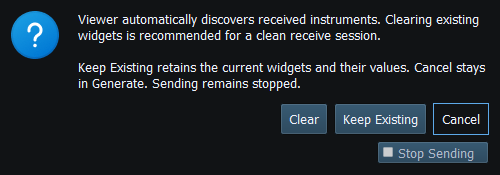
Figure 93. Viewer entry offers Clear, Keep Existing or Cancel. Sending is revoked before this choice. Click to enlarge.
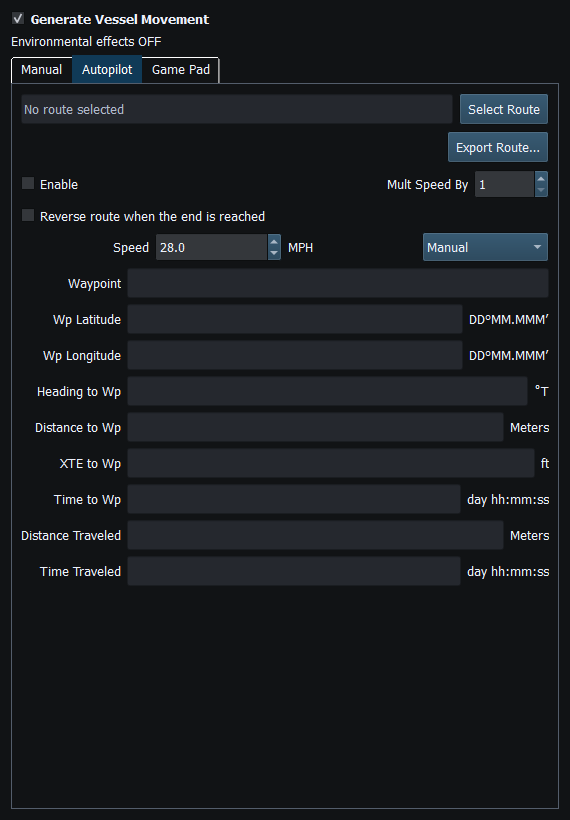
Figure 94. Autopilot route selection, speed source and waypoint progress controls. Click to enlarge.
Related topics
Application Log · NMEA Traffic Recording · Error Messages · Known Limitations · Connection Troubleshooting · Enable, Dispatch and Sending · Route Overview · Engineering Units