Autopilot and Route Following
Autopilot follows a selected validated route using Vessel Movement. Selecting a file or chartplotter snapshot is preparation; it is never an automatic engage command.
Prepare route following
- Disable Manual movement. If Autopilot Enable is disabled, check this first; Manual and Autopilot are intentionally exclusive.
- Choose a valid vessel/engine profile and satisfy any readiness message.
- On Autopilot, use Select Route. Choose a supported route file, or Select Chartplotter Route when that workflow is available.
- Read the selected route-name field and status. Confirm the intended ordered waypoints; cancelled or invalid selections retain the previous route.
- Select an appropriate speed source and inspect the displayed speed units.
Engage explicitly
Click the Autopilot Enable control only when the pending route and local operating state are correct. Read Waypoint, Wp Latitude/Longitude, Heading to Wp, Distance to Wp, XTE to Wp and Time to Wp together. Distance/time travelled are local progress indicators. A route-name field showing the KML's internal name, rather than its filename, is not by itself a load failure.
| Speed source | Use |
|---|---|
| Manual | Use the displayed selected speed |
| Throttle Position | Use configured propulsion/profile behavior and readiness |
| Route File | Use supported route speed/default behavior; ordinary GPX/KML does not guarantee per-waypoint speed metadata |
Mult Speed By (1–10) multiplies simulated travel speed, including speed over ground and closing velocity. Elapsed time remains in real seconds. It does not change network bitrate or instrument reporting intervals. Start with a modest multiplier to observe waypoint transitions.
Watch a route in OpenCPN
OpenCPN can display the vessel position, course and speed generated while RayNmeaSimulator follows a route. Configure a compatible NMEA connection between the applications. If you already have a working connection, retain its settings.
- Choose an input format and connection supported by your OpenCPN installation. Match the simulator output or gateway to that input. For a serial NMEA0183 example, see Connect to OpenCPN. RayNetworkBridge is not a generic NMEA0183 TCP/UDP stream.
- In Generate, enable the position and navigation instruments you need. GGA and RMC supply NMEA0183 position/fix and course/speed information; VTG or HDT can supply additional course/speed or heading. For NMEA2000, select supported PGNs appropriate to the receiving interface. Set valid fix/status/time fields, intervals and compatible Vessel Movement bindings.
- Enable Vessel Movement and Dispatch, select the route, choose the speed source and explicitly enable Autopilot. Check the local position and course as the vessel moves.
- With the intended isolated connection ready, choose Enable Sending. In OpenCPN check the input/debug view and chart. The vessel symbol follows received positions; course and speed update from their corresponding messages.
- If the symbol does not move, compare local position with instrument values, then check Sending, input configuration, valid fix status and the selected navigation source.
Simulator route following does not engage an external autopilot or transfer a route to OpenCPN. Stop Sending/F12 ends external output; disable Autopilot separately to stop local route following.
Handle endpoints and reversal
Reverse route when the end is reached configures continued reverse traversal at the endpoint; it is not a request to reverse a physical engine or upload a reversed route. Test the route with the option off first, then enable reversal deliberately and observe the waypoint order/direction at the end. Do not infer chartplotter navigation engagement from local progress.
Change a route safely
A new route selected during a run is pending for the next activation; the current route continues. Cancelled or invalid imports retain the previous selection. Disable Autopilot, review the new route and explicitly enable it to begin the next run.
Navigation instruments need compatible Vessel Movement bindings, generator Dispatch and their own Enable/reporting interval. APB and RMB fields can be edited manually, but automatic Vessel Movement bindings for them are not available.
Illustrated controls
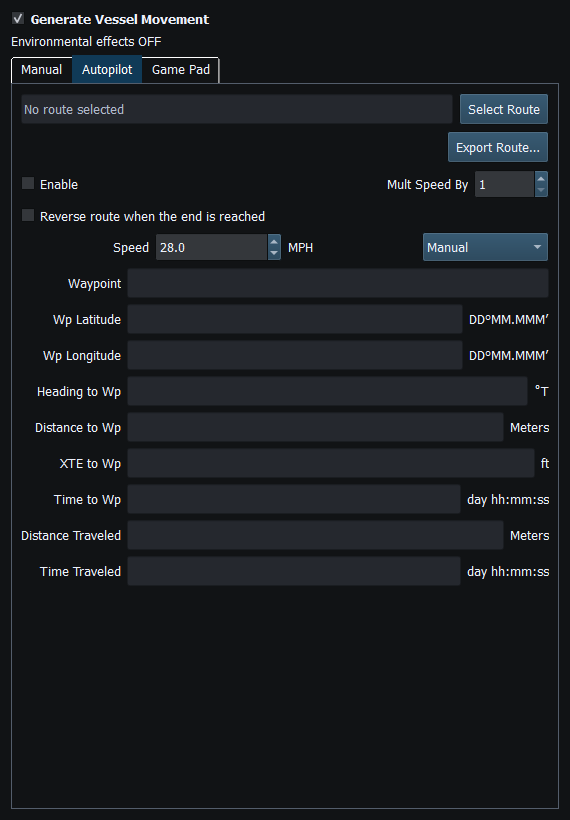
Figure 42. Autopilot route selection, speed source and waypoint progress controls. Click to enlarge.
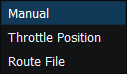
Figure 43. Autopilot speed may use Manual, Throttle Position or Route File where data are available. Click to enlarge.
Related topics
Generating NMEA Data · Enable, Dispatch and Sending · Manual Vessel Movement · Game Controller Mode · Engine and Transmission Simulation · Weather and Environmental Simulation · AIS Simulation · Windlass Simulation · Connection Troubleshooting · Route Overview · Engineering Units