
Loading the Default Layout
The Default Layout is a starting snapshot, not a subscription or a global start command. The application uses the saved user Default when present and otherwise the bundled Default.
Load the Default
- Stop external Sending and review unsaved workspace changes.
- Choose Layout → Load Default Layout.
- Respond to replacement/unsaved-change confirmation rather than assuming opening a menu has loaded anything.
- Inspect Navigation, Propulsion, Environment and Generate. Review individual Enable and generator Dispatch states before allowing dynamic sources to update values.
Loading a Layout revokes Sending. Enabled generators may still operate locally according to the document; this is separate from external instrument transmission. Representative values in a bundled Layout are not observations from your attached vessel.
Choose your own Default
- Construct and validate the desired workspace, including instrument intervals and generator states.
- Choose Layout → Save Layout as Default.
- Confirm replacement only after checking the current workspace. A failed validation/save must not be treated as successful replacement.
- Reload Default later to verify it is the intended snapshot. Keep a separately named Layout if you want an easy recovery point.
Choose a startup workspace
Layout → Startup Workspace offers Empty workspace, Load a selected Layout or Apply a selected Template. Browse for a valid document, then Save; Cancel preserves the prior startup choice. The path must remain available on that computer. A missing or invalid startup document produces feedback and an empty workspace rather than silently authorizing output.
Startup never enables global Sending. It can restore locally enabled generators and their Dispatch configuration. On a shared bench, Empty workspace is a useful deliberate starting choice. Changing the Default and changing startup selection are different operations: choose each setting separately.
Illustrated controls
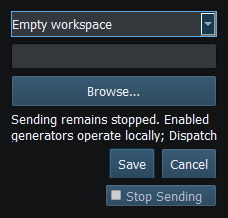
Figure 8. Startup Workspace chooses Empty, a Layout or a Template. Startup never authorizes Sending. Click to enlarge.
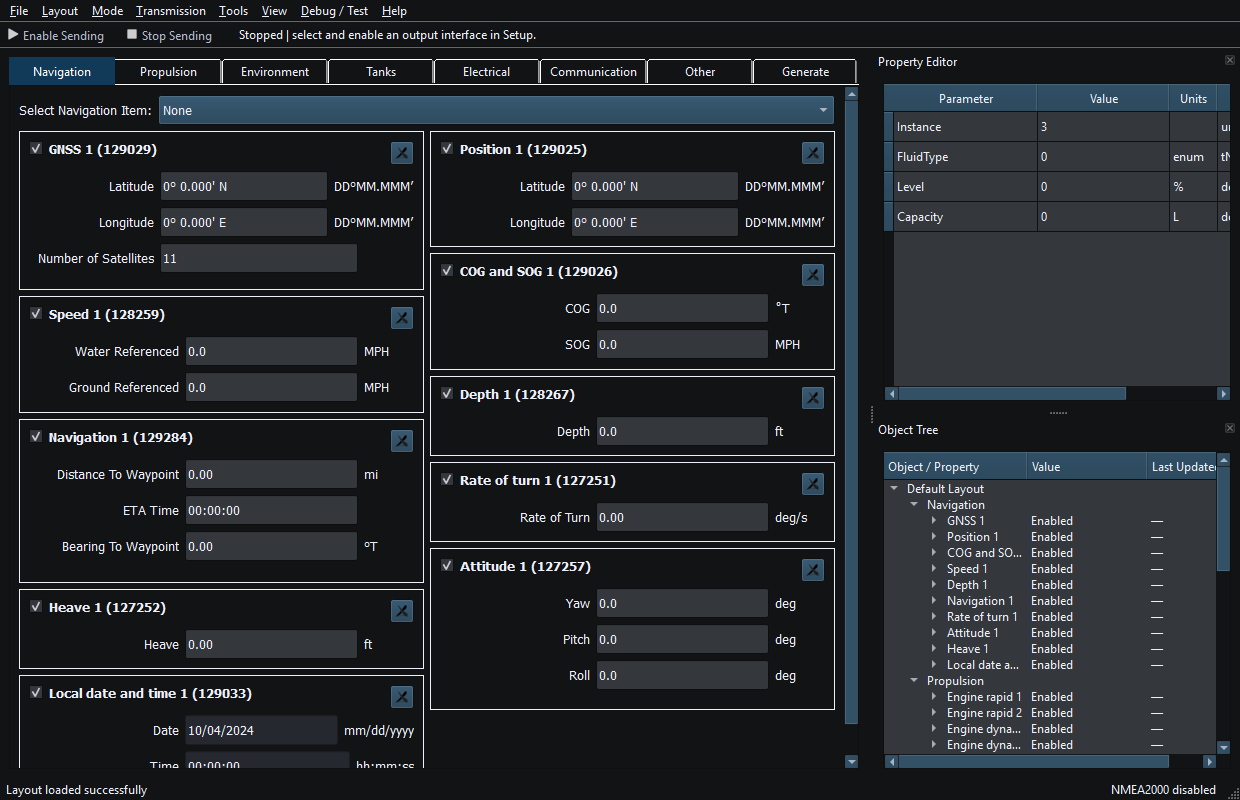
Figure 9. Category tabs, Sending controls, Property Editor and Object Tree in the main window. Click to enlarge.
Related topics
Introduction · System Requirements · Installation and First Launch · Viewer vs Generate · Quick Start · Connection Troubleshooting · Enable, Dispatch and Sending · Route Overview · Engineering Units