
Installation and First Launch
Install the RayNmeaSimulator package matching your operating system and processor. Keep the supplied runtime files together and follow the package installation instructions.
Prepare the application and workspace
- Check System Requirements for computer, adapter and connection needs.
- Follow the instructions accompanying the supplied application. Keep its required runtime files together; do not mix files from unrelated application versions.
- On Windows, extract the supplied ZIP and run its enclosed installer, then launch RayNmeaSimulator from the application menu. On Linux, use the supplied launcher where available or the application executable. Use your normal desktop account.
- Before replacing an existing installation, retain any Layouts, Templates, custom themes and routes you want to keep.
If the application reports a missing runtime library, check that the complete package was installed and matches your system. Keep the exact error for a support request. Use the supplied runtime files rather than copying libraries from another application.
Linux secure credential storage
Linux requires the secret-tool executable, provided by libsecret-tools on Debian, Ubuntu and Linux Mint, including ARM64 and Debian 12 ARM64 packages. The package installer detects a missing executable and offers only necessary missing dependencies after consent. Check-only and noninteractive operation never silently installs packages or elevates privileges. Use the installed launcher under your normal desktop account.
A missing secret-tool is different from a locked or unavailable desktop Secret Service. After installing the client, a running, unlocked desktop keyring is still needed; installing the client alone does not prove credential storage works. Keep credentials out of logs and support reports.
For CANable SLCAN or other serial-device access errors, see Linux Serial Port Permissions.
Make a safe first session
- Read the Sending toolbar. Press F12 if its state is uncertain; a fresh unconfigured session should be stopped.
- Leave external interfaces disabled for the first local exercise. No marine hardware is needed to explore Help or edit a demonstration instrument.
- Open File → Setup… to review units, appearance and vessel defaults. Save intentional changes or Cancel the draft.
- Choose a workspace with Layout → Load Default Layout, Load Layout… or Templates…. Review individual Enable and generator Enable/Dispatch states after loading.
- Follow Quick Start to enter a manual value and learn the independent authorization controls.
Loading a Layout or Template, changing mode, selecting a route or fetching weather does not authorize external Sending. Connect hardware only after checking the intended adapter, cable, permissions and settings. Use Viewer for supported reception; Generate permits local editing and simulation but still requires explicit Sending authorization for external instrument output.
Find your application files
| Platform | Normal application-data root |
|---|---|
| Windows | %LOCALAPPDATA%/RFStateSide/RayNmeaSimulator |
| Linux | ~/.local/share/RFStateSide/RayNmeaSimulator, or the desktop's XDG data override |
Within that root, layouts contains saved Layouts, routes contains route folders, stylesheets contains custom themes and logs contains application/traffic logs. The Log Viewer's Open Log Folder reveals its actual current location. Legacy ~/.raynmeasimulator data may still be discovered where supported; do not delete it as a troubleshooting shortcut. Preferences and secure credentials use separate platform storage.
Choose how the next session starts
Layout → Startup Workspace lets you choose Empty workspace, a saved Layout or a Template. Review that choice before returning to a connected bench. Enabled generators operate locally according to their saved state; Dispatch and external Sending remain separate. Starting the app or restoring a workspace does not grant Sending authority.
For a problem on first use, keep the previous valid files and read Connection Troubleshooting or the Application Log. The default boat position and demonstration values are examples, not a verified live vessel fix.
Illustrated controls
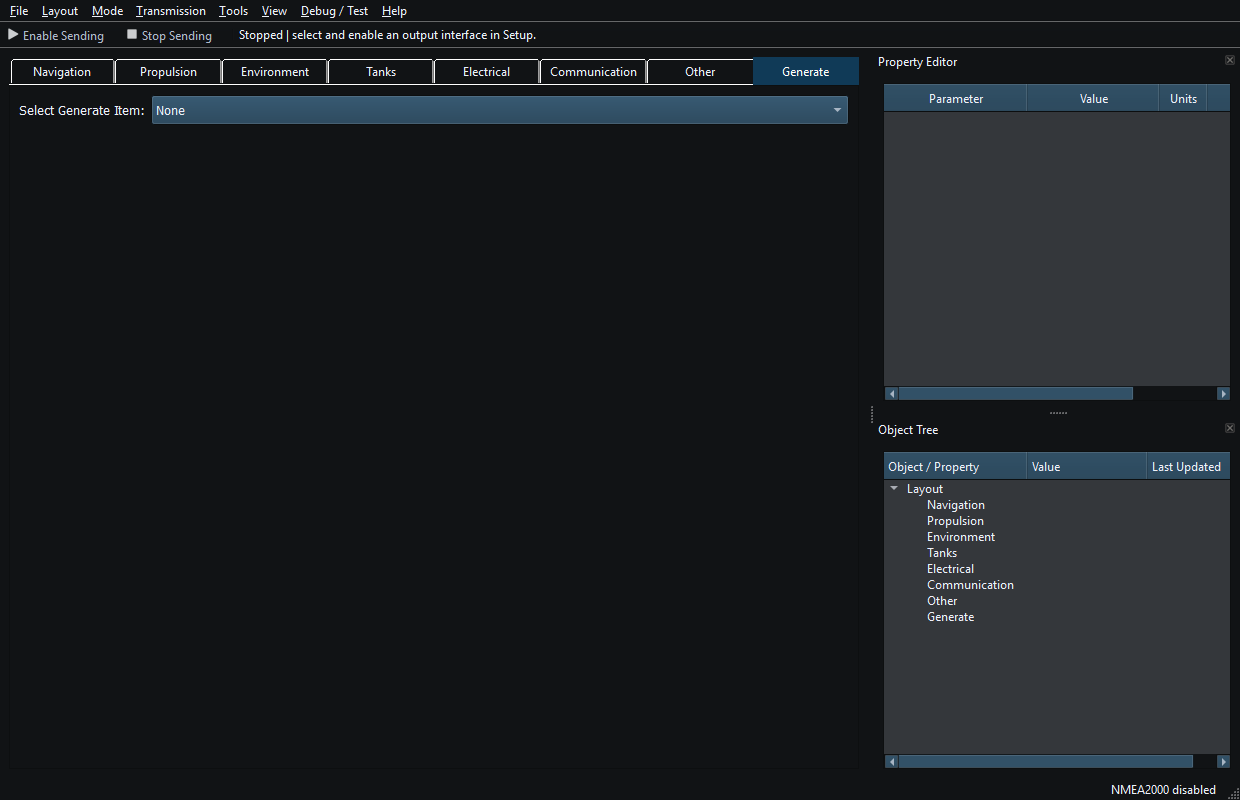
Figure 2. An empty workspace with Sending stopped and interfaces disabled. Click to enlarge.
Related topics
Introduction · System Requirements · Viewer vs Generate · Quick Start · Loading the Default Layout · Connection Troubleshooting · Enable, Dispatch and Sending · Route Overview · Engineering Units