Engine and Transmission Simulation
Engine/Outboard and Transmission/Lower Unit generators supply optional instance-specific dynamic values. Engine Rapid, Engine Dynamic and Transmission Dynamic instruments remain usable with supported manual properties.
Configure propulsion first
- Review Setup → Vessel engine count, profile and performance defaults. Distinguish physical units such as RPM, pressure, temperature and fuel flow.
- Add instruments for the required engine instances. Do not route two engines through one instance accidentally.
- Add Engine/Outboard and, where needed, Transmission/Lower Unit sources from Generate. Review optional source-creation prompts; No preserves independent supported relationships.
- Review source Enable/Dispatch and Start Engine separately. Local engine state is not ordinary Sending authorization.
Add a generator before or after its instruments. Matching instances connect automatically; duplicate instruments are not needed when adding or replacing a source.
Read source controls and status
Start Engine, RPM randomization and movement-controlled RPM affect local simulation. A source may show that Vessel Movement controls its RPM; do not fight that source by repeatedly editing the destination instrument. Engine hours, fuel rate, coolant/oil values and status fields have distinct units. Not every supported instrument property is necessarily driven by a source.
Transmission gear and lower-unit status follow the configured source relationships and instances. A displayed forward/neutral/reverse choice is a simulated state. It is not a physical motor-control command from this UI.
Maintain an engine profile
- Open the available Engine Profiles tool and select a profile.
- Review identity, optional horsepower/fuel/electrical metadata and the RPM/fuel-flow curve.
- Use a duplicate or new profile for experiments rather than overwriting a known-good reference casually.
- Validate/edit curve data and inspect the graph before Save. Respect running-engine restrictions and confirmation prompts.
- Keep backups and use the tool's explicit restore/backup actions when needed.
The profile curve sets simulated performance. Use the displayed units and check the intended RPM range. Adjust a copy when exploring different performance; the curve is not a measurement of your physical engine.
If one engine does not update
Check generator instance, instrument instance, Enable/Dispatch and whether another source owns RPM. Then inspect supported signal/property mappings. If local values agree but the receiver does not, investigate instrument Enable/interval, encoder support and selected transport instead of adding duplicate generators.
Illustrated controls
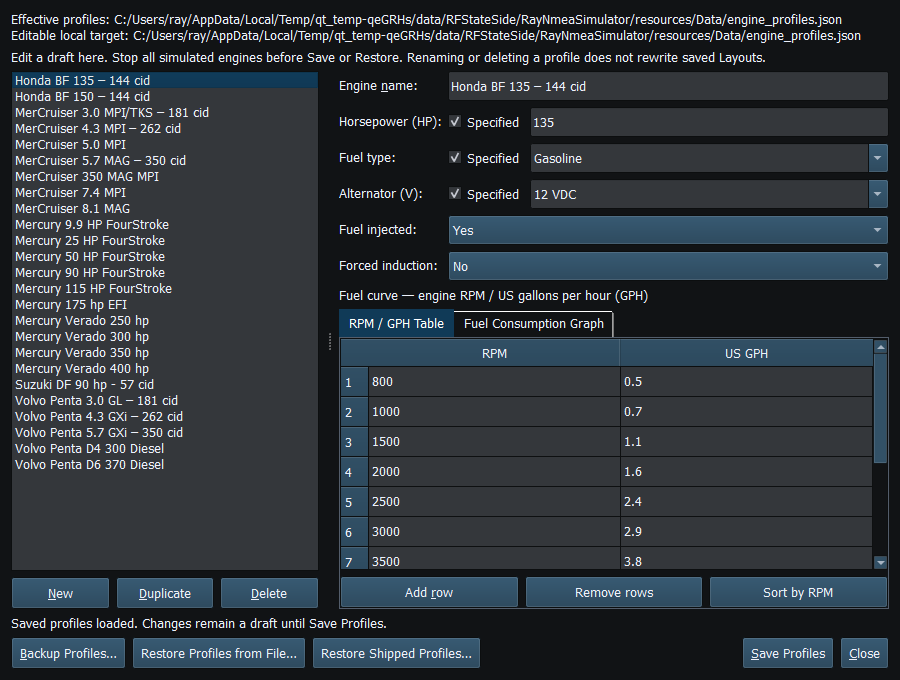
Figure 45. Engine Profiles edits local performance data; it does not control a real engine. Click to enlarge.
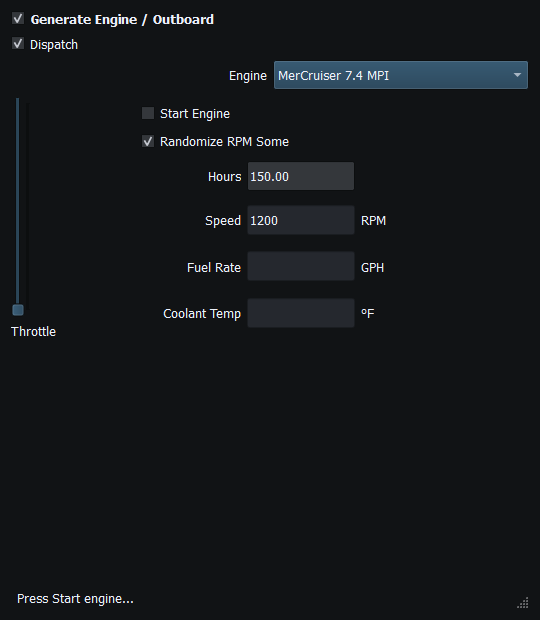
Figure 46. Engine generator main controls and local start state. No external engine is controlled. Click to enlarge.
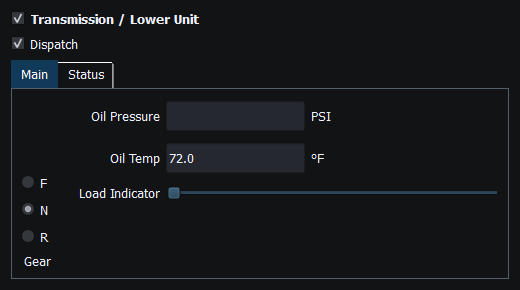
Figure 47. Transmission generator controls feed compatible instance-specific instruments. Click to enlarge.
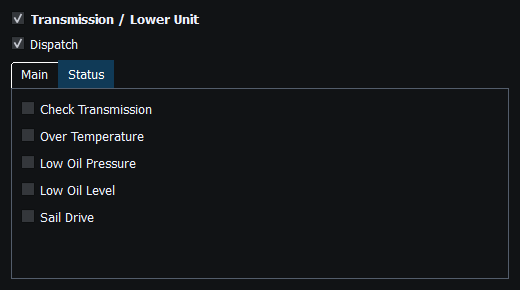
Figure 48. Lower-unit status is a local simulation source; manual instrument TX remains independent. Click to enlarge.
Related topics
Generating NMEA Data · Enable, Dispatch and Sending · Manual Vessel Movement · Autopilot and Route Following · Game Controller Mode · Weather and Environmental Simulation · AIS Simulation · Windlass Simulation · Connection Troubleshooting · Route Overview · Engineering Units