
Themes and Appearance
Choose a built-in or custom theme to adjust appearance. Your saved theme remains selected when you restart. This manual uses Darkeum illustrations.
Select an appearance
- Open File → Setup… and locate the appearance/preferences controls.
- Choose System, Light, Dark, Darkeum, Teal Dark or Porcelain.
- Review readability, then Save to persist the selection. Cancel abandons an unsaved draft.
- Inspect instruments, docks, menus and Help. A theme must not change measurement values or authorize output.
System follows the native platform style/palette. The other built-ins provide curated palettes. Darkeum and Teal Dark are separate choices; the manual does not substitute one for the other. The six built-in choices remain available even if custom files are missing.
Install a custom QSS theme
Use the stylesheets subdirectory of the application-data root. For example, install MyBench.qss there, or MyBench/MyBench.qss with its associated assets. A theme folder with one unambiguously named QSS is also supported. Choose a distinct name so you do not override an existing theme unintentionally.
- Place a valid .qss file in the supported per-user theme directory, or an existing supported theme folder layout.
- Reopen the appearance choices so runtime discovery can list valid themes.
- Select the custom theme and Save. Its name persists across restarts; recompiling the application is not required.
- Keep relative assets with that theme under the supported path conventions. Test buttons, tables, selection, links and unavailable text before relying on it.
Your stylesheets are not overwritten. Existing custom files remain available when valid. A missing, unreadable or malformed selection falls back to a built-in theme; inspect the log/status and check the file before changing unrelated settings.
Read at high DPI
Resize docks and use Help's image enlargement for detailed figures. Native font metrics and DPI can change spacing. A custom QSS may force unreadable colors or fixed sizes; try a built-in to distinguish theme defects from data/rendering defects. Treat externally supplied QSS as trusted local content because it can reference local assets.
Illustrated controls
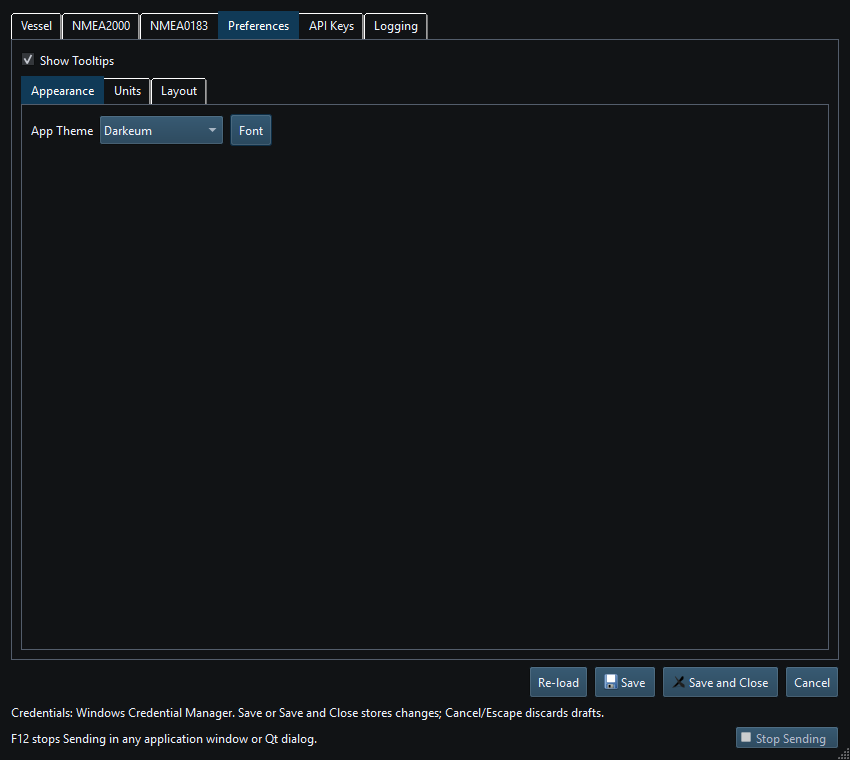
Figure 26. Choose a theme in Setup, then Save to keep the selection. Click to enlarge.
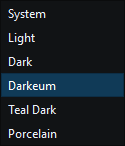
Figure 27. Choose a built-in theme or an available custom QSS theme. Click to enlarge.
Related topics
Main Window · Instruments and Generators · Layout Management · Templates · Property Editor · Object Tree · Keyboard Shortcuts · Connection Troubleshooting · Enable, Dispatch and Sending · Route Overview · Engineering Units