
GPX/KML Import
GPX/KML Import reads one validated ordered route into pending Vessel Movement state. It does not merge unrelated routes, activate navigation or authorize transmission. Work on a copy when investigating a file from another application.
Select Route File
- In Generate Vessel Movement, open Autopilot and click Select Route.
- If offered a source choice, select Select Route File.
- Choose a .gpx or .kml file. The file dialog provides route folders and preserves usable sidebar navigation across repeated openings.
- Confirm the file. Read any validation error before changing the current simulation.
- Verify the route field and selection status. The internal KML name
Path, for example, is a valid displayed route name, does not mean selection failed. - Disable Manual movement before using Autopilot Enable; the modes are intentionally mutually exclusive.
Supported shapes and validation
| Format | Accepted input / important boundaries |
|---|---|
| GPX | One route with ordered rtept points, or one continuous track segment when there is no route. GPX 1.0/1.1 and supported namespace-free files. Standalone waypoints are not an ordered route. |
| KML | One LineString or supported gx:Track; supported ordered Point collections where unambiguous. Multiple paths/ambiguous separate containers are rejected rather than joined. |
| Coordinates | Finite latitude −90…90 and longitude −180…180 degrees. Text order in KML geometry is longitude,latitude. |
| Bounds | 4 MiB input, 25000 points, bounded XML depth/elements. Consecutive points closer than 1 mm are removed; a usable route still needs at least two distinct points. |
Names, order and practical double-precision coordinates are retained. Supported KML speed metadata is interpreted in knots and converted to metres/second; absent speed metadata is not invented. An ordinary GPX route does not automatically supply a usable Route File speed profile.
Exchange one route with OpenCPN
- In OpenCPN's Routes manager, select one intended route and use its GPX export operation.
- Save to a transfer file; do not edit the live navigation database.
- Transfer that file and use Select Route File here.
- Compare route name, waypoint count/order, first/last coordinates and intermediate turns before activating simulation.
Export a single route at a time from OpenCPN. GPX file exchange does not require a chartplotter route service. Cancelled selections, malformed files and unsupported multi-route data leave the previous valid selection intact.
Illustrated controls
Reading guide: The route-name field sits immediately left of Select Route. Export Route is below it. Autopilot Enable remains a separate action and is unavailable while Manual movement is active.
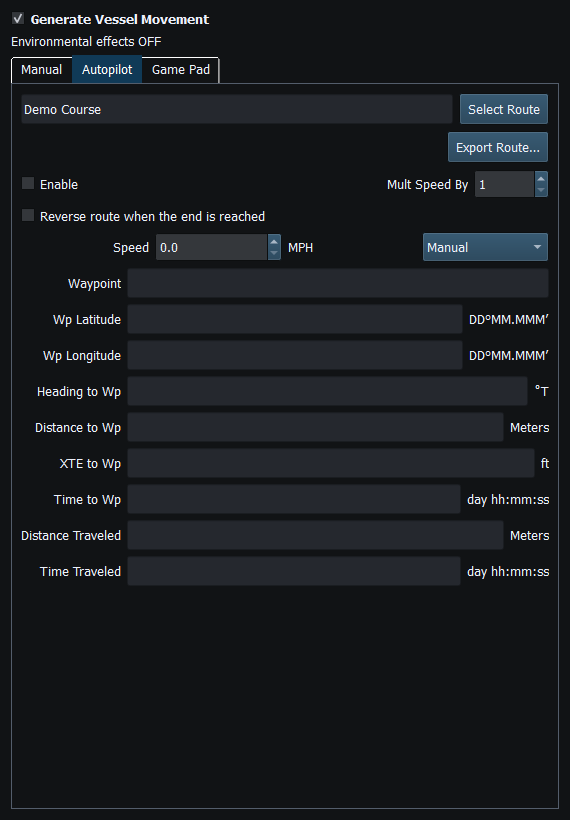
Figure 76. The route-name field shows Demo Course. Enable Autopilot separately to start following it. Click to enlarge.
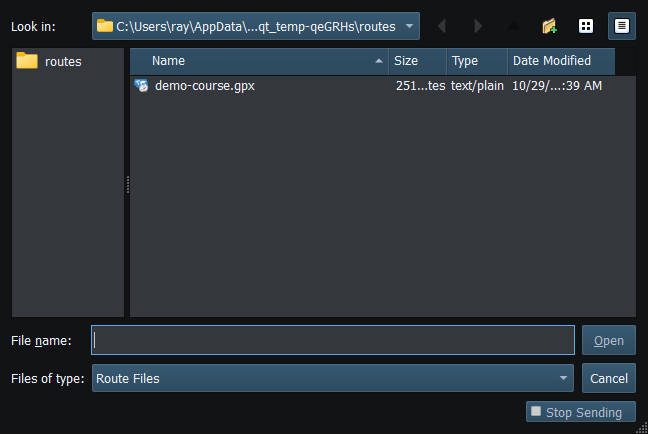
Figure 77. Choose the GPX or KML route file to load. Click to enlarge.
Related topics
Route Overview · GPX/KML Export · Selecting Chartplotter Routes · Route Requests and Authorization · Navigation Measurements · Connection Troubleshooting · Enable, Dispatch and Sending · Engineering Units